Your game data, one window.
DxVisualizer is a Unity editor window for ScriptableObject-heavy projects. Your types by namespace, every instance of the one you pick, and its inspector, side by side.
https://github.com/Ambiguous-Interactive/DxVisualizer.git
 DxVisualizer
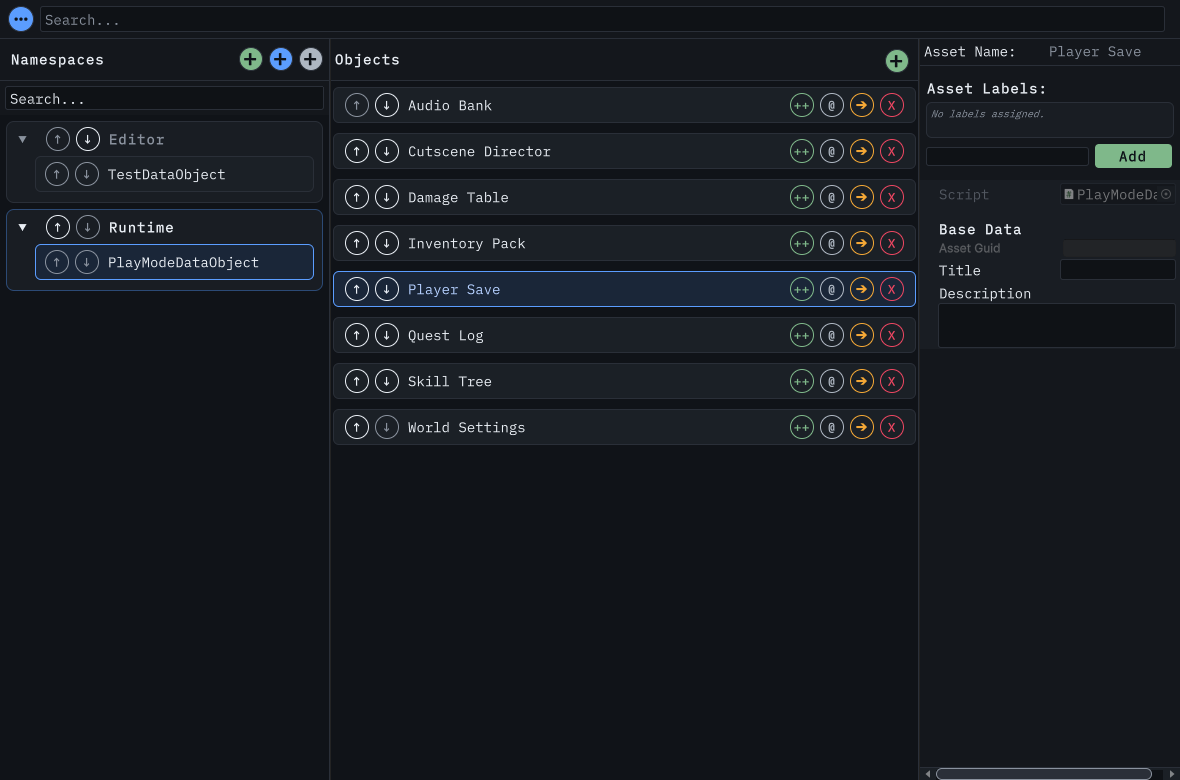
Your types, by namespace
Search Unity's ScriptableObject types, or scan an asset or scripts folder. Reorder namespaces and types; the order persists.
Every instance, in place
Create, clone, rename, move, delete, and reorder. Filter by asset label, then run processors over all or the filtered set.
The inspector you know
Custom editors and Odin Inspector render as usual and save immediately. Add your own UI Toolkit content below.
What it does
| Task | What the window gives you |
|---|---|
| Find | Search your ScriptableObject types by name, add a whole namespace at once, or scan a folder for assets you already have. |
| Inspect | Edit the selected asset in the inspector you already know, including custom editors and Odin Inspector integration. |
| Organize | Reorder namespaces, types, and instances, filter by label, and keep the arrangement across sessions. |
| Edit | Clone, rename, move, delete, and create assets in place, then run processors over one type or all of its instances. |
DxVisualizer is free forever. There are no subscriptions, no paid upgrades, and no feature-gated tiers. The full source is MIT-licensed, and every capability described here ships in the free package.
Requirements
- Unity 2021.3 or newer, the floor declared in
package.json. The window is developed and tested on Unity 6. - No additional package dependencies.
Install
- Open Window → Package Manager.
- Select +, then Add package from git URL.
- Enter
https://github.com/Ambiguous-Interactive/DxVisualizer.gitand select Add.
Open the window with Tools → Wallstop Studios → DxVisualizer. Getting started walks through the first session.
Alpha
Built for Wallstop Studios' internal use. There is no support commitment yet, and any release can break compatibility. Feel free to use it, and report what breaks.
Where to go next
- Getting started: install the package, open the window, and edit your first asset.
- Search and filtering: global search, the type filter, and label filtering.
- Managing assets: create, clone, rename, move, delete, and run processors.
- Organizing your data: ordering, layout, themes, persistence, and Play Mode.
- Extending the window: attributes,
BaseDataObject, processors, and custom inspector content. - Troubleshooting: missing types, hidden rows, processors, and themes.
- Migrating from Data Visualizer: what the rename changed, and what it didn't.
- Roadmap: data sources planned beyond ScriptableObjects.
- Issues: known problems and feature requests.