Getting started
This page takes you from an empty project to an edited asset. It covers the first session only. The README documents the full feature set, including themes, processors, and extension points.
Requirements
- Unity 2021.3 or newer.
package.jsondeclares that floor, and the window is developed and tested on Unity 6. The 2021.3 editor is not part of the local validation yet, which #86 tracks. - No additional package dependencies.
Install the package
- Open Window → Package Manager.
- Select +, then Add package from git URL.
- Enter
https://github.com/Ambiguous-Interactive/DxVisualizer.gitand select Add.
Unity imports the package, and the menu item appears.
Open the window
Select Tools → Wallstop Studios → DxVisualizer, then dock it next to the Inspector. The window has three panels:
- Namespaces and types (left) lists your ScriptableObject types by C# namespace. Expand a namespace, then select a type to load its instances.
- Objects (center) lists every instance of the selected type. One row is selected at a time.
- Inspector (right) shows the full inspector for the selected asset, including custom editors and Odin Inspector integration.
Add your types
Three controls above the namespace panel fill the catalog:
- Search Types queries the ScriptableObject types Unity knows about. Add single types or a whole namespace in one action.
- Scan Asset Folder crawls a folder and registers the types and existing assets it finds. Use it to adopt a project that already has data.
- Scan Scripts Folder registers types from source folders, which is the right choice before you create any assets.
Removing a type or namespace only stops DxVisualizer from tracking it. Your assets stay on disk.
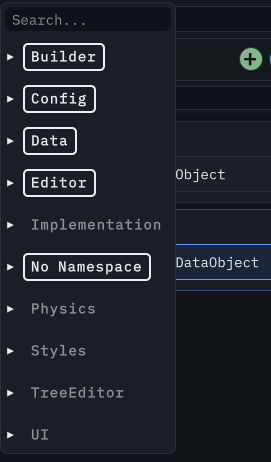
Type search popover over the namespace panel. Regenerated from the live window by the docs capture pipeline.
Edit your first asset
- Select a type in the left panel.
- Select an instance in the middle panel.
- Edit a field in the right panel. The change saves immediately, as in Unity's own Inspector.
Each object row carries four action buttons: Clone writes a copy with a Clone suffix beside the original, Rename renames the asset on disk, Move retargets it to
another folder, and Delete removes it after you confirm.
Create an asset
Select Create to add a new instance of the active type. The asset lands in your Data Folder, which you set under Settings. Clones always stay beside their original, whatever the Data Folder is.
 Create popover over the object list. Regenerated from the live window by the docs capture
pipeline.
Create popover over the object list. Regenerated from the live window by the docs capture
pipeline.
Filter and search
Three finders narrow different things, and they do not affect each other. The Search and filtering page covers each one in full.
- The Search box in the window header row searches every tracked type, not only the type you selected. It matches asset names, type names, asset GUIDs, and string fields on the assets themselves, so you can find an asset by what is inside it.
- The filter field above the namespace list narrows the type rows by display name, without case sensitivity. Namespace headers stay visible.
- Drag labels from Available into the AND: or OR: rows to show only assets that carry them. The AND && and OR || switch chooses between matching every label you dragged and matching any of them.
Keep your arrangement
Ordering, collapse state, tracked types, and your selection persist between sessions, and you can reorder namespaces, types, and instances directly in the window. The Organizing your data page covers ordering, persistence, themes, and the Play Mode pause.
Under Settings, choose where that state lives:
- Leaving Persist State in Settings Asset off (the default) stores it in your local user cache, so each developer keeps a private arrangement and version control stays free of layout churn.
- The project settings asset stores the state in the repository, which suits a team that wants one shared arrangement.
Select Active Object mirrors your DxVisualizer selection in Unity's Inspector, and Data Folder sets where new assets are created. New assets land in a per-type folder under it; clones stay beside their original.
While the editor is playing
Entering Play Mode pauses package-driven work. The window keeps the last loaded view and shows Package editing is paused during Play Mode. While it is paused:
- Create, the add-type controls, and the inspector are disabled, and the inspector shows read-only content.
- Asset operations are refused: clone, rename, move, delete, and label changes.
- Selecting another type does not load its instances, and the catalog does not change.
Everything resumes when you leave Play Mode.
Next steps
- Search and filtering — what global search matches, its 25-result limit, and the exact AND/OR label rules.
- Managing assets — where each asset operation lives, where created files go, how clones are named, and how processors are scoped.
- Organizing your data — ordering, themes and their tokens, persistence, and what pauses during Play Mode.
- Extending the window — attributes,
BaseDataObject, lifecycle hooks, processors, and custom inspector content. - The video walkthrough gives a visual tour.